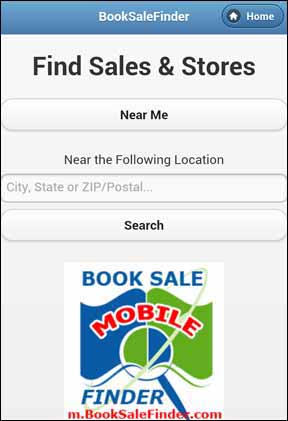
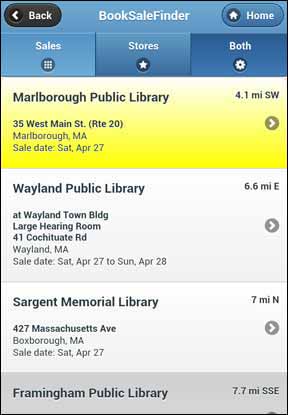
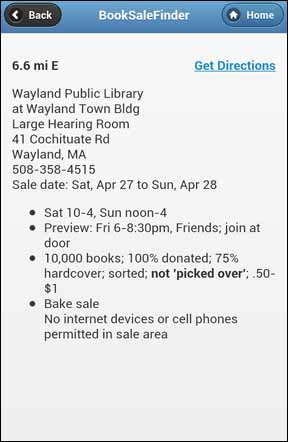
Since 1994 Book Sale Finder has been helping you find book sales in your area: we provide a calendar of upcoming sales in your state, and you’ve used our visual Google maps to locate them. Now, Book Sale Finder is proud to present the latest method for locating sales: by GPS navigation. You have probably used your GPS to find book sales and stores by typing in the address of each destination, but no more...
Book Sales TO GO provides you with a “Point of Interest” (POI) file for finding upcoming sales AND all non-profit book stores in your area!
Most GPS devices allow you to add Points of Interest (POI files) that contain the locations of places you may want to go, such as restaurants, hotels, and parks. Our POI files tell you where to find book sales and non-profit book stores.
Each Tuesday, the Book Sales TO GO files are updated to contain sales for the next 9 days, so be sure to get a new download each week. You simply load the file into your GPS and you’re on your way!
The current files contain all non-profit book stores plus all book sales occurring:
From Friday, 9/3/10 through Thursday, 9/9/10
Choose your file from the following 3 formats:
After you load the POI file you will see both sales and non-profit stores in your vicinity. If you see "Sale mm/dd - mm/dd:" it means that this is the location of a book sale which runs from the indicated dates. If you see "NPStore:", this means that this is the location of a non-profit book store.
Downloading the Garmin CSV file
To put a Point Of Interest file on a Garmin device, you first need to download the Garmin POI Loader
from the Garmin website (you need to do this only once). After you download and install the Garmin POI loader, you should set up a file folder to
contain all your POI files. Be sure this folder contains only POI files for your Garmin; when you run the POI loader, it will ask for the name of the
folder and will process all the files in that folder and put them on your GPS.
After you have set up your POI folder, download the current week's book sales by clicking the following (be sure to SAVE this to your folder - do not OPEN it):
Now connect your Garmin GPS to your computer and run Garmin POI Loader to convert and move BookSaleFinder-Garmin.csv to your GPS device.
Once the GPS is loaded, you can find the current week's book sales and all non-profit stores by clicking on the 'EXTRAS' button in the navigation window. This causes the CUSTOM POI window to appear, which will load the book sales. Click on CUSTOM POIs and you will see a list of possible POI files, one of them will be BookSaleFinder. Click on that and you will see a list of all book sales and stores in your area. (Note: these are the steps for a Garmin 760 device; other models may be different. Check the Garmin web site if these steps don't work.)
Downloading the TomTom OV2 file
To load the Point of Interest file to a TomTom you need to copy 2 files directly to the map folder on your TomTom. The main file is an OV2 file and contains the actual data, the other file is simply a .BMP image file which contains an icon for Book Sale Finder. The image file never changes, so once you load it you need not load it again.
First, attach your TomTom to your computer. It will appear as a file folder. One of the folders will have the name of your map (e.g., USA_and_Canada). Download the current week's book sales to that folder by clicking the following and saving the file directly to your TomTom.
If this is the first time for loading sales to your TomTom, you may also want to load the following image file. This is the BookSaleFinder icon that will make it easier for you to spot sales.
After the file(s) have been loaded, your TomTom will direct you to local book sales and non-profit stores. Simply start up your TomTom as usual, and then under the Navigation menu, click Point of Interest, then click on POI near you. You should then see the BookSaleFinder (BSF) icon. Click on that and your GPS will tell you the distance to nearby stores or sales. Click on the one you want, and the GPS will set it as your destination.
Important Note: Although we go to great effort to assure our files are accurately formatted, sometimes things go wrong. After loading the files above, if you find that your TomTom no longer works, then just open the map folder on TomTom (e.g., USA_and_Canada) and delete the file BookSaleFinder-TomTom.ov2. If the problem was caused by the BookSaleFinder file, then this will clear it up.
Downloading a Generic CSV file
If you have another brand of GPS, you’ll need to use the following file. It’s a generic Comma Separated Value (CSV) file. You can download the current week's sales in generic format by clicking the following and saving the file.
Most GPS manufacturers will give you program to convert from this generic format into a format suitable for your GPS. If you prefer, you can also convert it using the free GPSBabel program which can be obtained at: www.gpsbabel.org/download.html.
After loading the file, convert it into the appropriate format for your GPS. If you run GPSBabel, indicate that the input file is a "Comma Separated Value" file.